Solved Grub – Modifying OS sequence, Deleting/Removing entries
Removing Memtest and Managing GRUB Entries
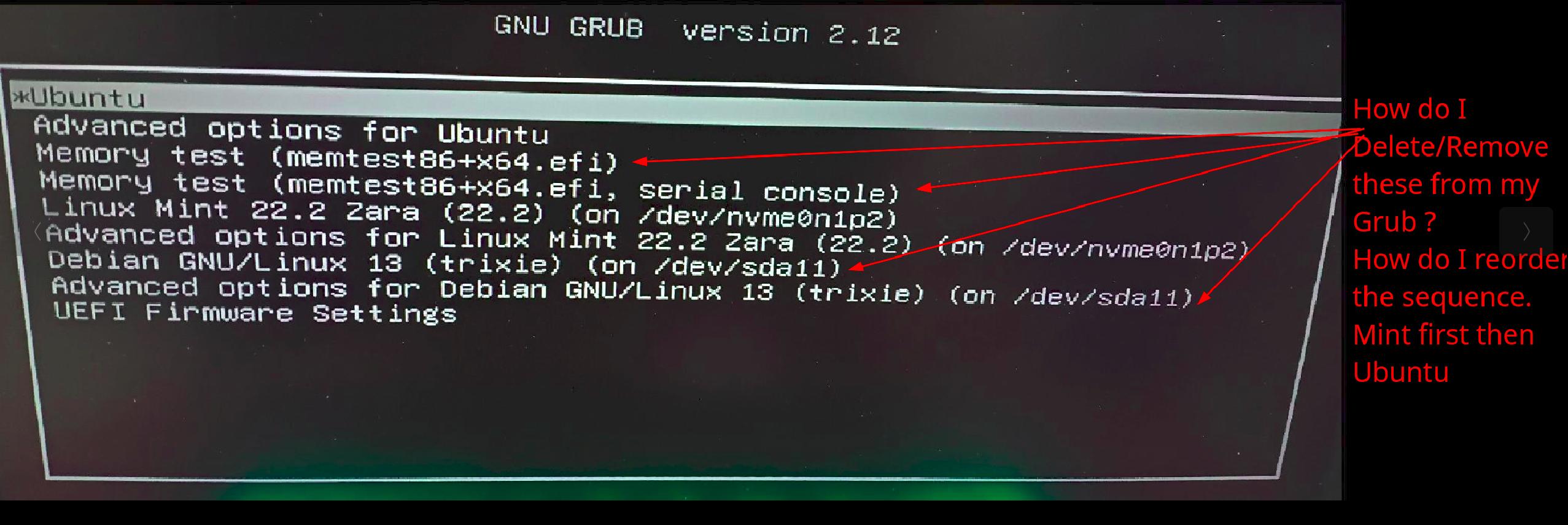
When using systems managed by GRUB (the GRand Unified Bootloader), users may find unwanted entries in the boot menu, such as Memtest86+. This issue often occurs when other operating systems or remnants of previous installations exist. The following outlines how to effectively remove Memtest and address other stale entries in GRUB.
How to Remove Memtest from GRUB
To remove Memtest86+ from the GRUB menu, two primary methods can be employed:
1. Uninstalling Memtest86+
The most straightforward method is to uninstall Memtest86+ via the command line. Open a terminal and run the following commands:
bash
apt remove memtest86+
update-grub
This command will remove Memtest86+ from your system and update GRUB so that the entry no longer appears in the boot menu. Upon rebooting, Memtest should be gone from the menu.
2. Removing Configuration Files
Sometimes, third-party applications like Memtest86+ may have configuration files in the /etc/grub.d/ directory. To address this:
- Check for any files related to Memtest in the
/etc/grub.d/directory. If found, these can be removed. - After removal, run
update-grubto ensure changes take effect.
This method allows you to remove the Memtest entry from the GRUB menu while keeping the software installed on the system.
Addressing Stale GRUB Entries
If your GRUB menu still shows entries from an old Debian installation after switching to distributions like Mint or Ubuntu, it may indicate that GRUB is detecting leftover boot files or stale configuration entries.
Possible Reasons for Old Entries
- Residual Partitions: An old Debian partition may still exist.
- Leftover EFI Boot Entries: UEFI systems may retain old boot entries.
- Remaining GRUB Config Files: Old configuration files might not have been removed.
Steps to Check and Clean Extra Partitions
Utilize the command below to inspect your current partitions:
bash
lsblk -o NAME,MAJ:MIN,RM,RO,SIZE,TYPE,FSTYPE,FSVER,LABEL,MOUNTPOINT,MODE,OWNER,GROUP
Look for any partitions that do not correspond to your current Mint or Ubuntu installations. If you identify any irrelevant partitions, you have the following options:
- Zeroing or Wiping: Clean out errant partitions to make them usable again.
- Repurposing: Use the freed space for new storage.
Managing the EFI Partition
For those using UEFI:
-
Examine the EFI partition to see if any Debian directories exist. If found, you can remove them as root and then update GRUB.
-
Check UEFI boot entries with the command that can display the existing entries. If you see a Debian entry, use
efibootmgrto delete it.
Adjusting Boot Order
If you wish to change the boot order of your installations, modify the GRUB_DEFAULT setting in the /etc/default/grub file. For example:
- If the Mint entry appears first in the
grub.cfgand you want to boot Ubuntu by default, setGRUB_DEFAULT=1(since numbering starts from zero).
Cleaning All Traces
If the problem persists and seems too cumbersome to resolve, consider booting from a live disk or recovery tool to wipe the drive completely. This extreme step ensures the elimination of all remnants of previous installations, allowing for a clean reinstall using the installers’ partitioners.
Conclusion
In summary, managing GRUB entries like Memtest can range from simple uninstallation to checking and cleaning lingering boot configurations. By systematically addressing old partitions, configuration files, and boot orders, users can streamline their boot menu effectively. If necessary, a full wipe can serve as a last resort to reset the environment entirely.